How to Use the TreeTrace Web Service in Postman
The archive below contains ready-made files that you can import into Postman.
Please note that after importing the request set, you must enter the Username and Password
obtained during the registration process.
Development:
Download Postman Demo Archive Dev
Download SHA256 checksum DevProduction:
Download Postman Demo Archive Prd
Download SHA256 checksum Prd
Below guide will walk you through the exact steps to manually create and use TreeTrace Web Service in Postman.
1) Get the Token (Basic Auth)
Open Postman and click New Request
Set request type to
POSTEnter the URL:
- Development:
https://treetracesrv-dev.sylvamo.com/Auth/token - Production:
https://treetracesrv.sylvamo.com/Auth/token
- Development:
Go to the Authorization tab:
- Type: Basic Auth
- Username: [YourUsername]
- Password: [YourPassword]
Postman will automatically set the Authorization header like this:
Authorization: Basic base64(username:password)
Go to the Body tab:
- Type: raw
- Format: JSON
- Leave the body empty or just use empty object
{}if required.
Click Send.
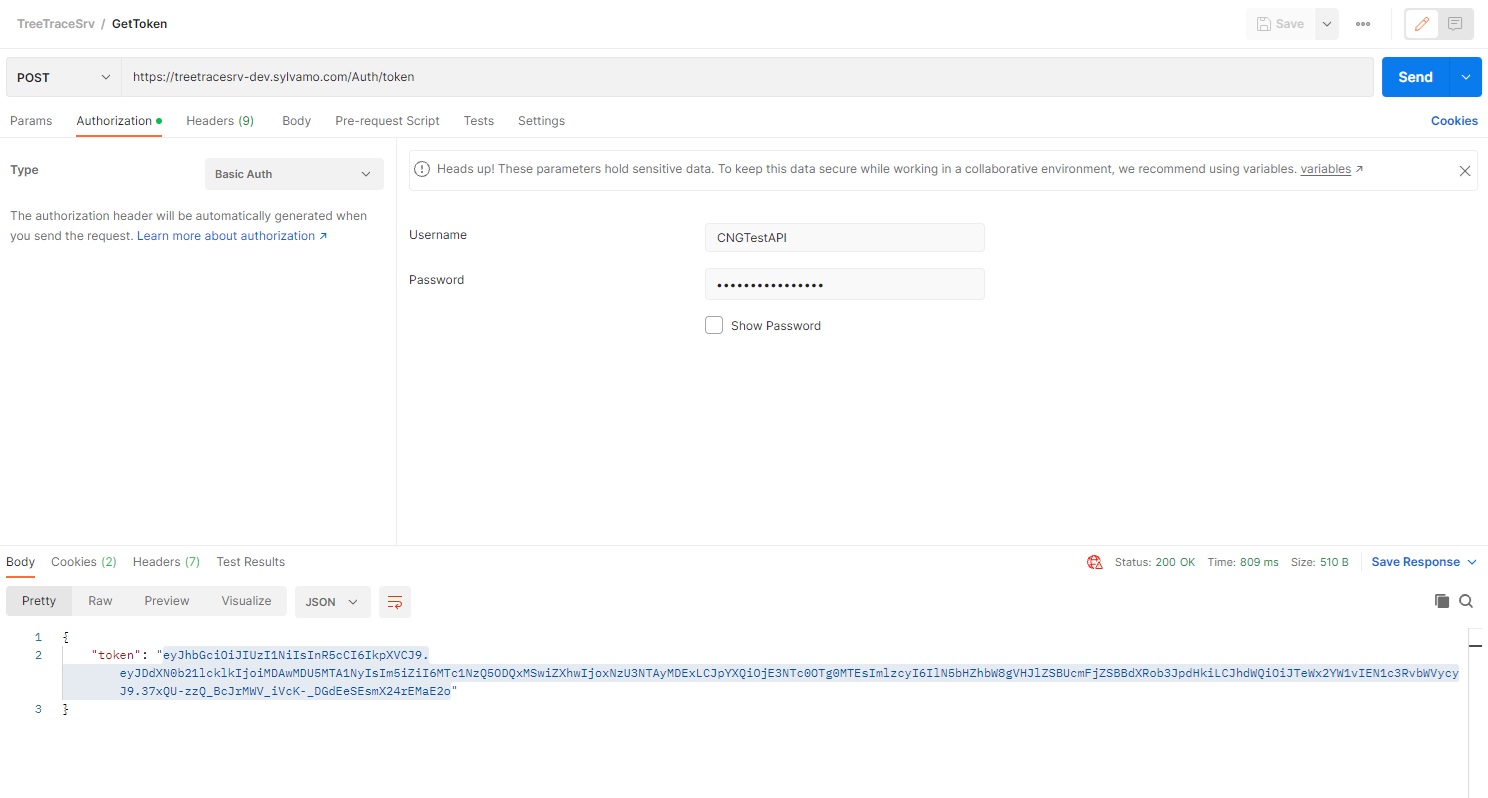
2) Copy the Token from the Response
- You’ll get a response like:
{ "token": "eyJhbGciOiJIUzI1NiIsInR5cCI6Ikp..." }- Copy the value of the
tokenfield.
- Copy the value of the
3) Request Tree Trace Data
Create a New Request in Postman.
- Method:
POST
- Method:
Enter the URL:
- Development:
https://treetracesrv-dev.sylvamo.com/Eudr/GetRecords - Production:
https://treetracesrv.sylvamo.com/Eudr/GetRecords
- Development:
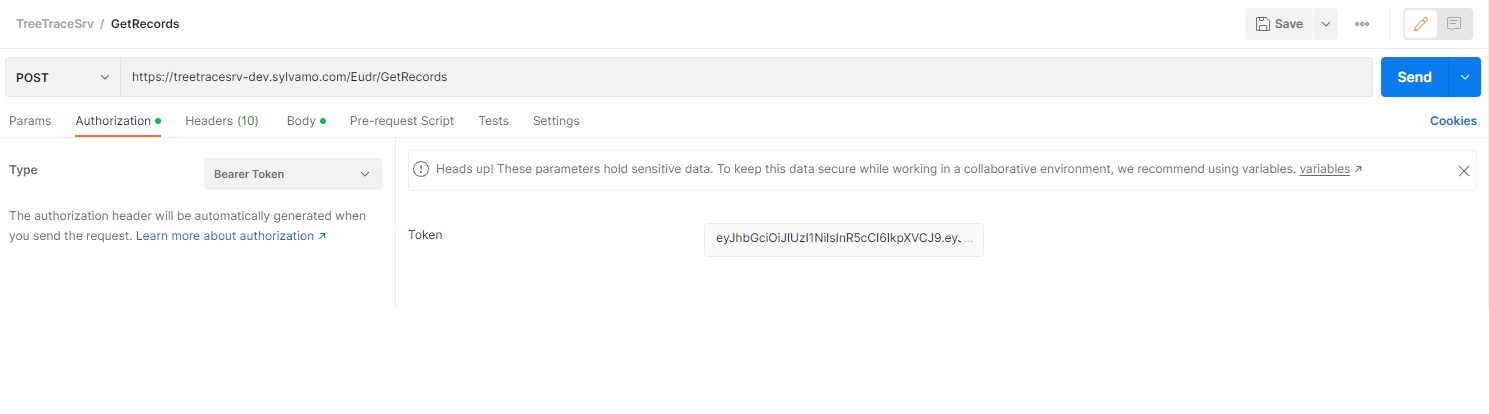
Go to the Authorization tab:
- Type:
Bearer Token - Paste the token you copied in the previous step.
- Type:
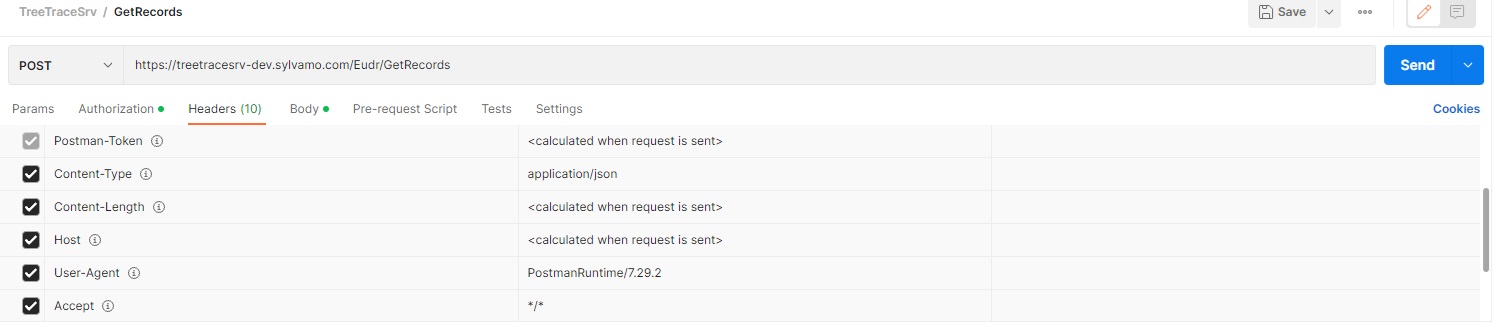
Go to the Headers tab (optional, Postman usually adds it):
- Add a header:
Content-Type: application/json
Accept: */*
- Add a header:
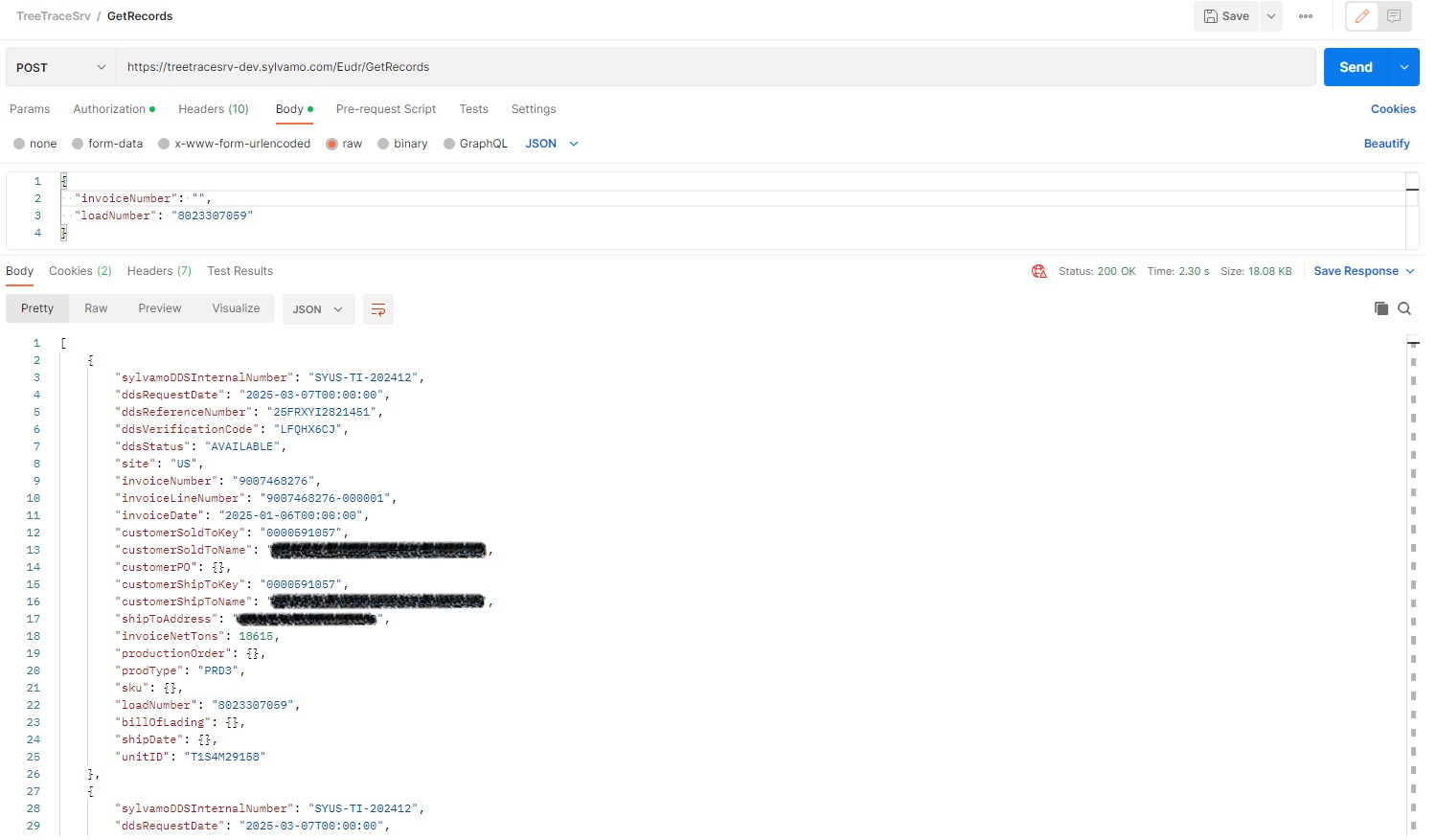
Go to the Body tab:
- Type:
raw - Format:
JSON - Enter a body like:
{ "invoiceNumber": "123456", "loadNumber": "78910", "customerPo": "654321" }- You can leave either field empty or skip the empty entries entirely:
{ "customerPo": "654321" } OR { "invoiceNumber": "", "loadNumber": "", "customerPo": "654321" }- Type:
Click Send
4) Request Tree Trace GeoJson
Create a New Request in Postman.
- Method:
POST
- Method:
Enter the URL:
- Development:
https://treetracesrv-dev.sylvamo.com/Eudr/GetGeoJson - Production:
https://treetracesrv.sylvamo.com/Eudr/GetGeoJson
- Development:
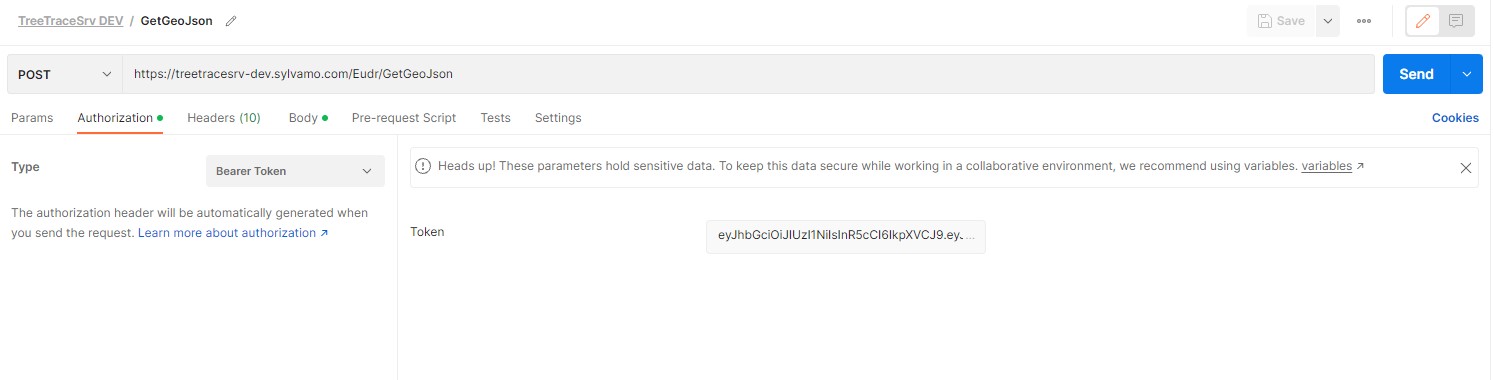
Go to the Authorization tab:
- Type:
Bearer Token - Paste the token you copied in the previous step.
- Type:
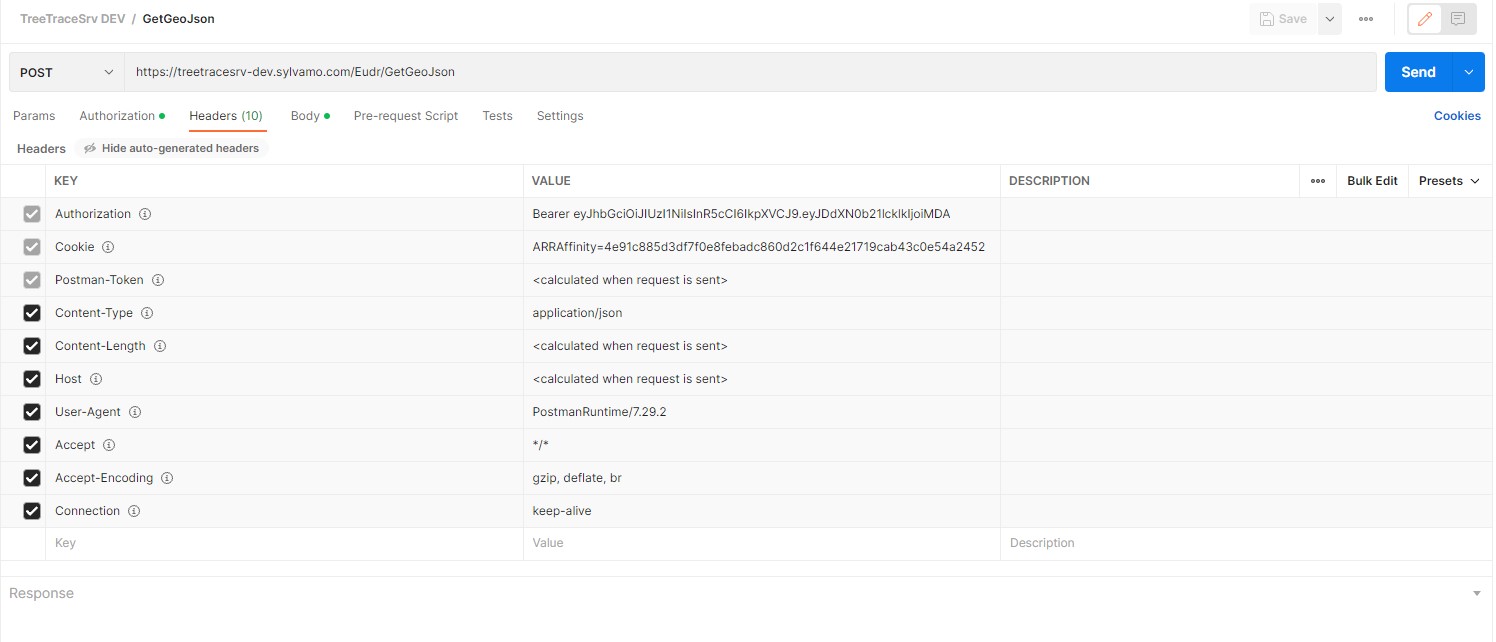
Go to the Headers tab (optional, Postman usually adds it):
- Add a header:
Content-Type: application/json
Accept: */*
- Add a header:
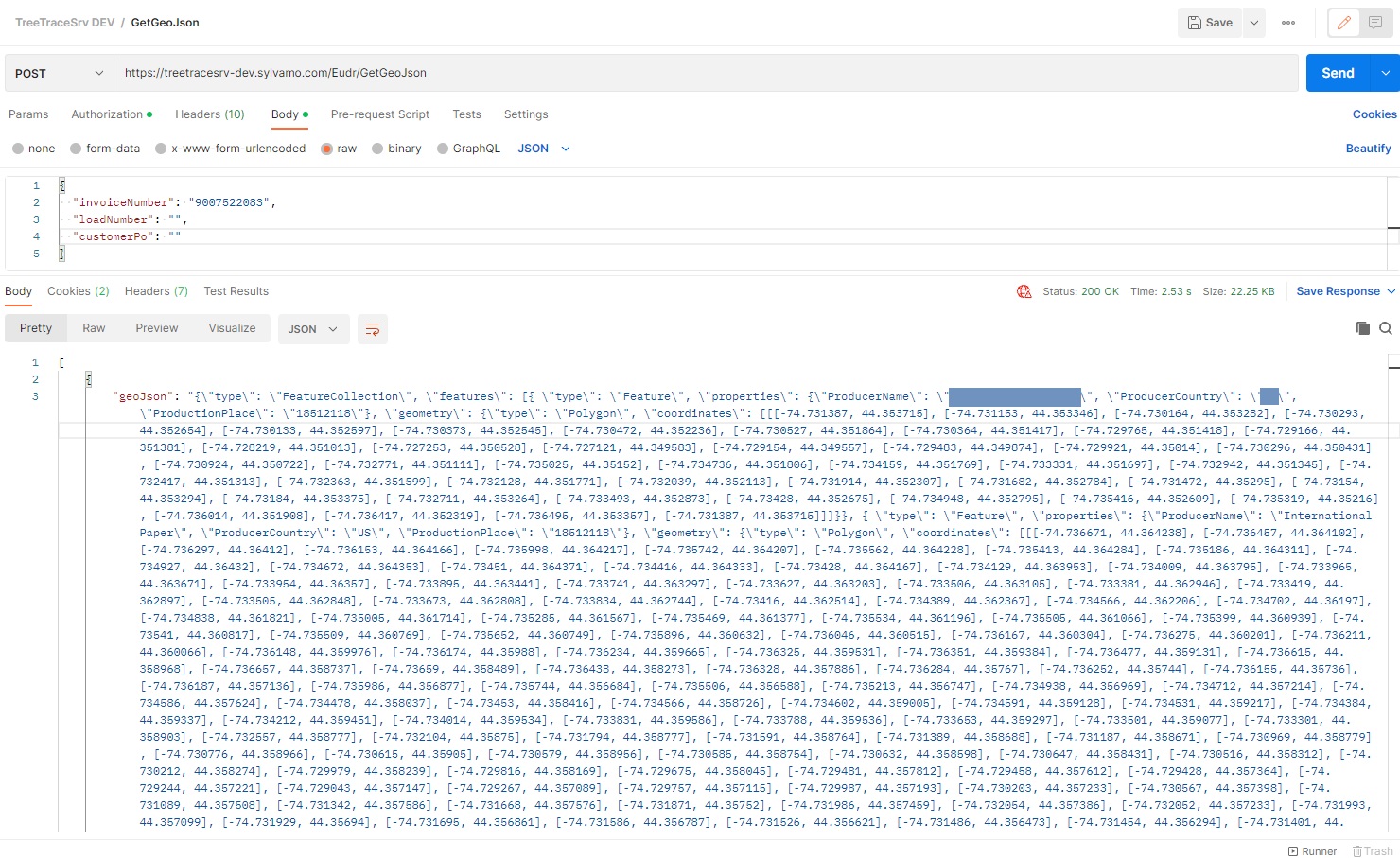
Go to the Body tab:
- Type:
raw - Format:
JSON - Enter a body like:
{ "invoiceNumber": "123456", "loadNumber": "78910", "customerPo": "654321" }- You can leave either field empty or skip the empty entries entirely:
{ "customerPo": "654321" } OR { "invoiceNumber": "", "loadNumber": "", "customerPo": "654321" }- Type:
Click Send
5) View the Response
If successful, you’ll receive the tree trace data as JSON.
If token is invalid/expired, you'll get a 401 Unauthorized or similar error.